
How to bypass the waiting time on 1fichier

What is the waiting time on 1fichier
1fichier applies a waiting timer based on your IP address before allowing new downloads. This delay can last from minutes to hours and becomes frustrating if you need to download multiple files or a very large one. The practical solution is to obtain a different IP address or use a specific method to clear the timer and download instantly.
Method 1: Airplane mode on mobile (instant new IP)
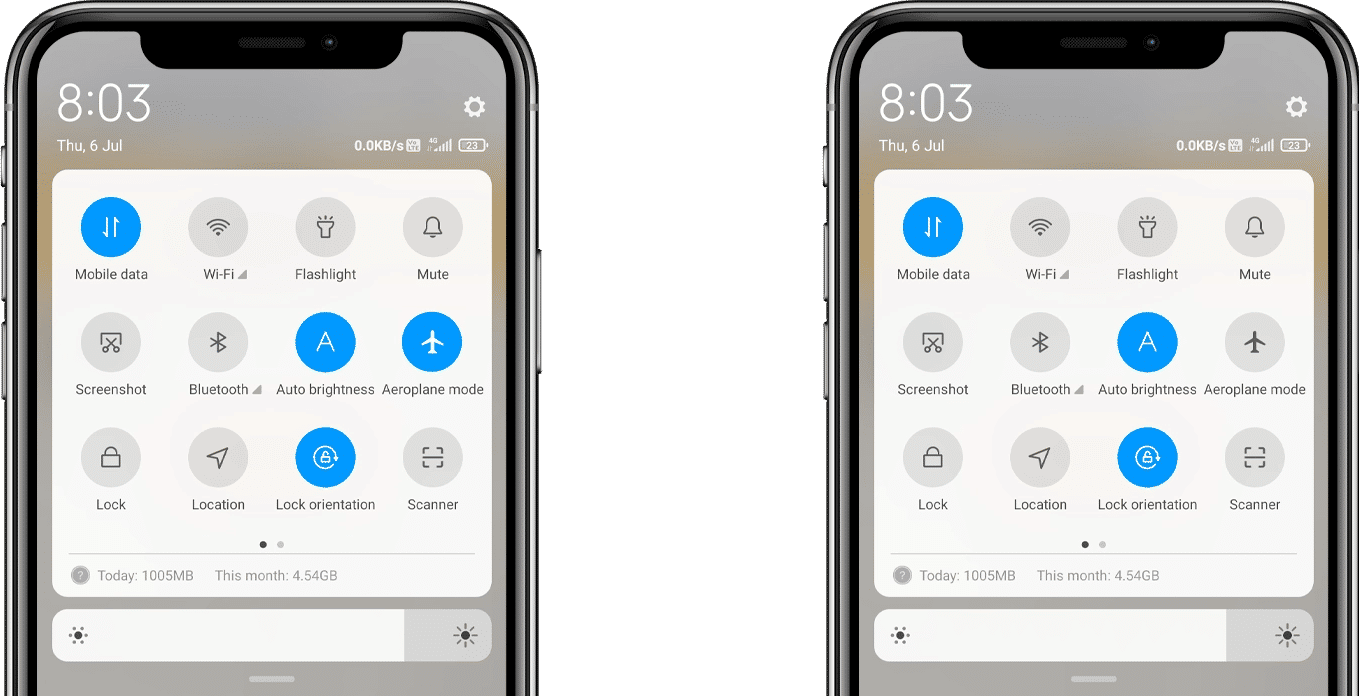
If you are using mobile data, turning airplane mode on and off forces the carrier to assign you a new IP address. With this new IP, the waiting timer disappears after refreshing the 1fichier page.
Step 1 — Enable airplane mode
On your phone, enable airplane mode, wait a few seconds, and then disable it.
Step 2 — Get a new IP
Once reconnected, your carrier will assign you a different IP address. This removes the condition that triggers the waiting timer.
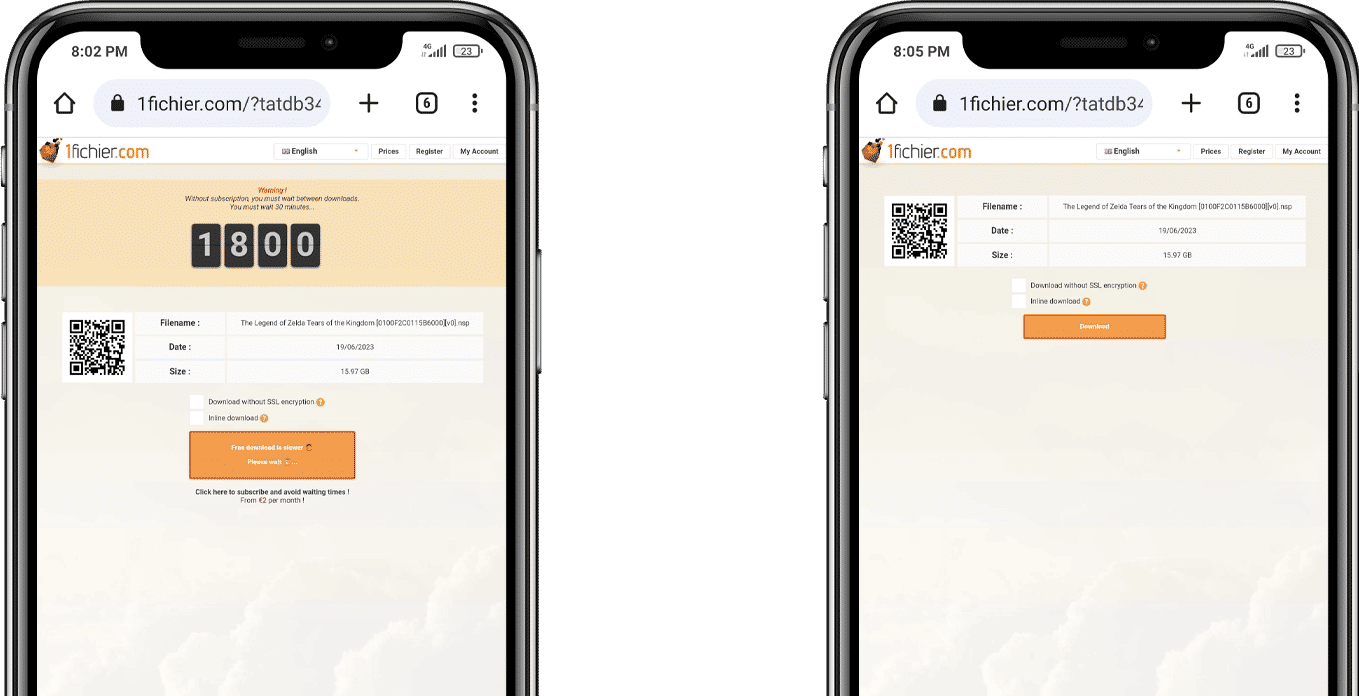
Step 3 — Refresh the page
Return to the 1fichier download page and refresh it. The waiting countdown should disappear.
Method 2: Restart connection on PC (Wi-Fi/Ethernet)
On Windows, you can disable and re-enable your network adapter to force a reconnection and obtain a new IP address—similar to airplane mode, but on desktop.
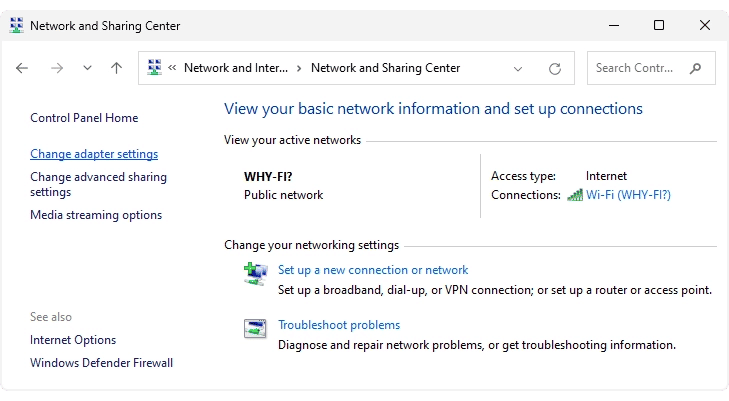
Step 1 — Open network settings
Go to Control Panel → Network and Internet → Network and Sharing Center. On the side, click “Change adapter settings”.
Step 2 — Disable the adapter
Right-click on your connection (Wi-Fi or Ethernet) and select “Disable”.
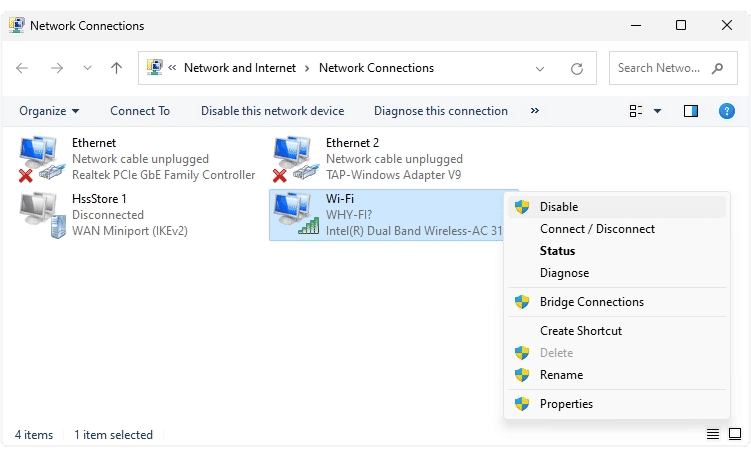
Step 3 — Enable it again
Right-click again and choose “Enable” to reconnect.
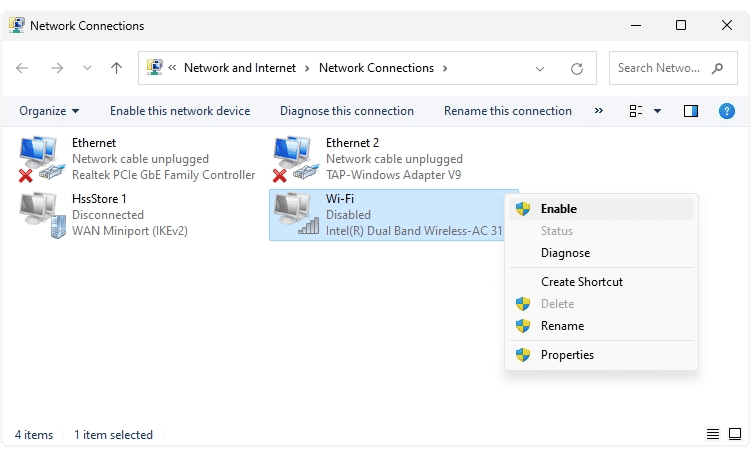
Step 4 — New IP and refresh
After reconnecting, a new IP address is assigned. Return to 1fichier and refresh the page: the waiting timer should disappear.
Method 3: Chrome and UltraSurf (VPN trick to avoid blocks)
If the previous methods do not work for you, this VPN-based option is usually effective. The key detail: do not start the download with the VPN enabled. First use it to remove the timer, and just before pressing the final button, turn it off.
Step 1 — Install UltraSurf
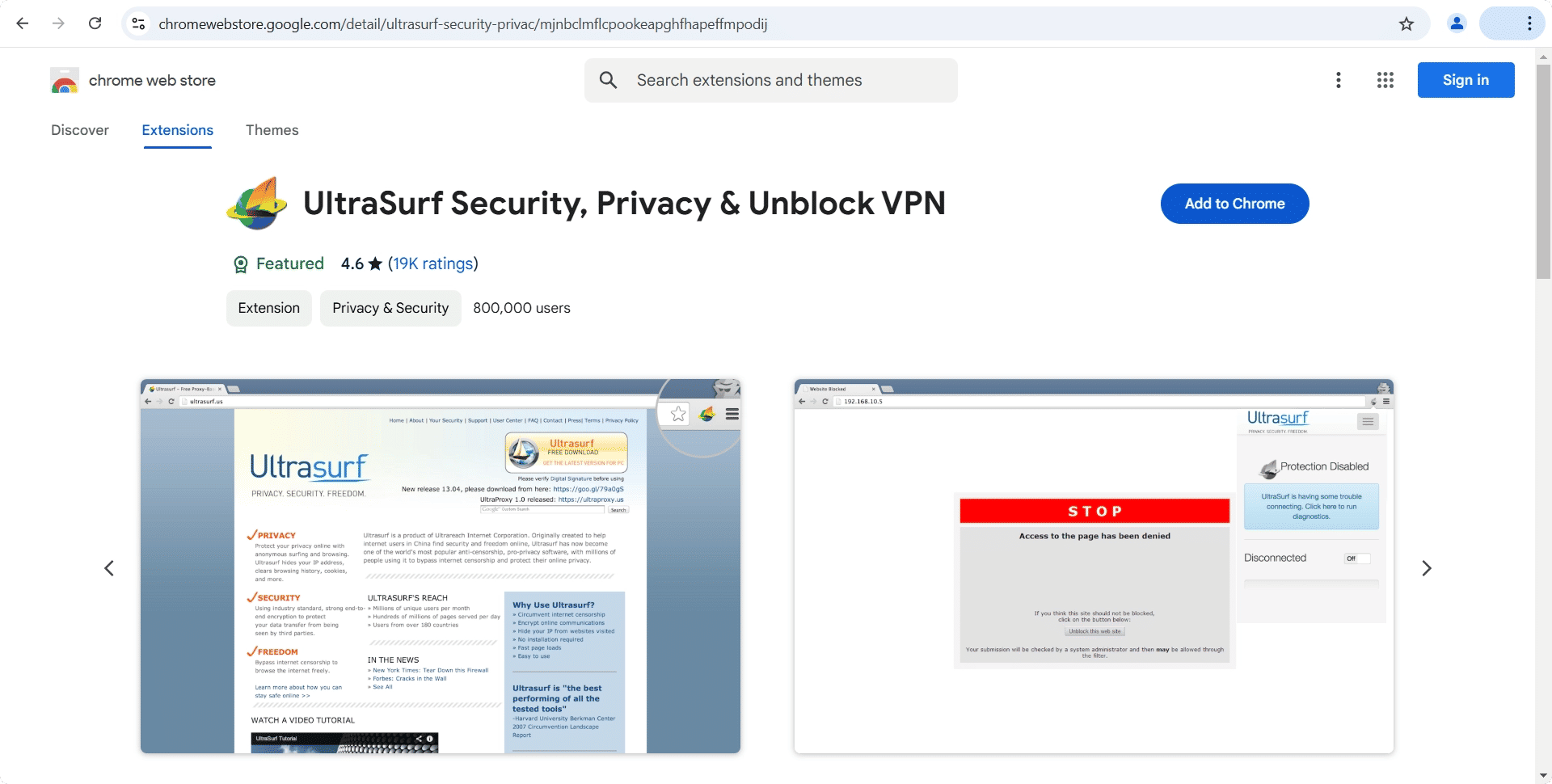
Install the UltraSurf Security, Privacy & Unblock VPN extension in Chrome.
Download UltraSurf Security Extension
Step 2 — Pin the extension
Click the extensions icon (puzzle piece) and pin UltraSurf for easy access.
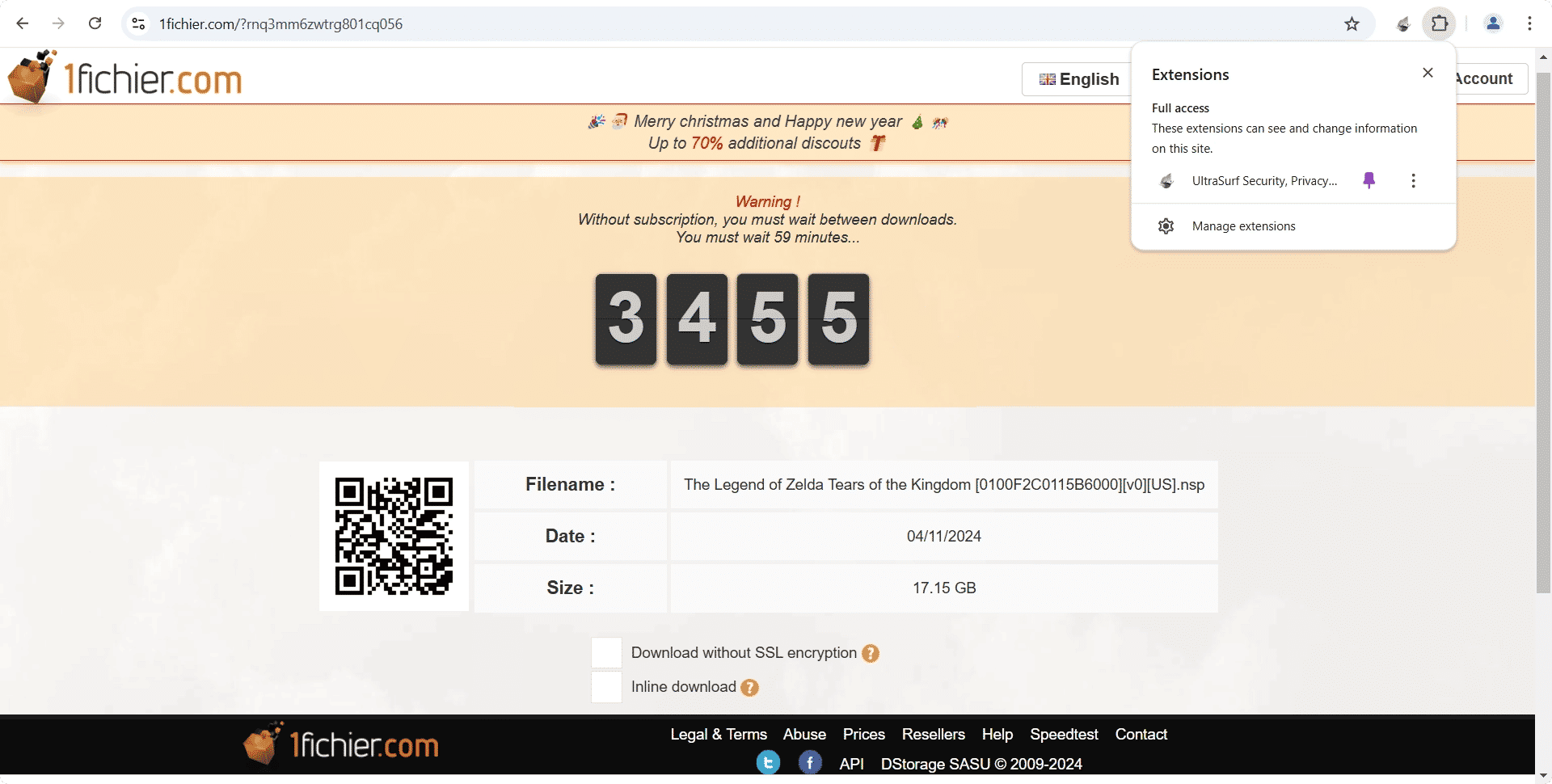
Step 3 — Enable it
Open UltraSurf and turn on the toggle (from “Disconnected” to “Connected”). If a new UltraSurf tab opens, close it.
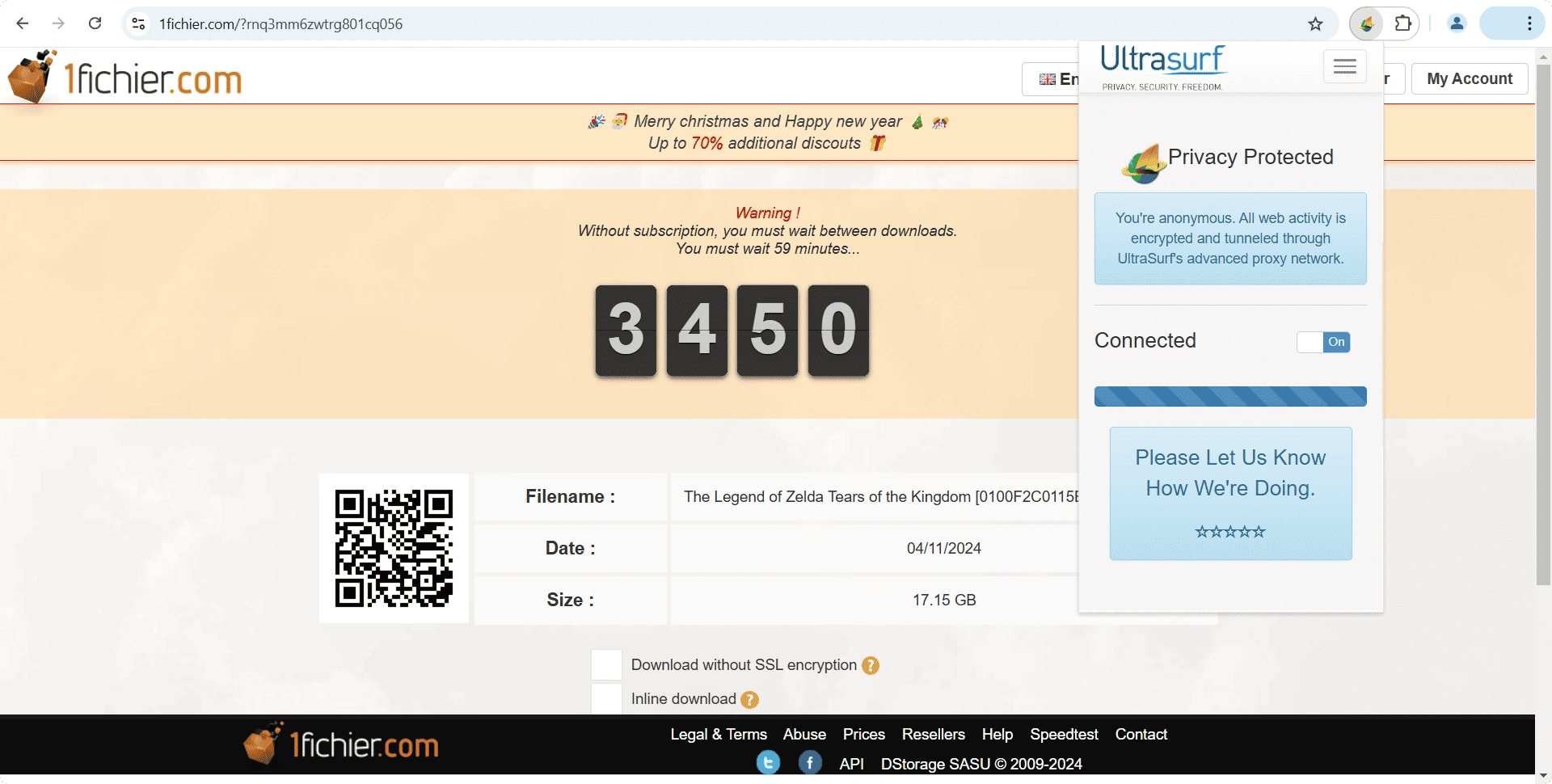
Step 4 — Refresh 1fichier
With UltraSurf enabled, refresh the 1fichier page showing the timer. You will see the countdown disappear. Do not download yet while the VPN is on.
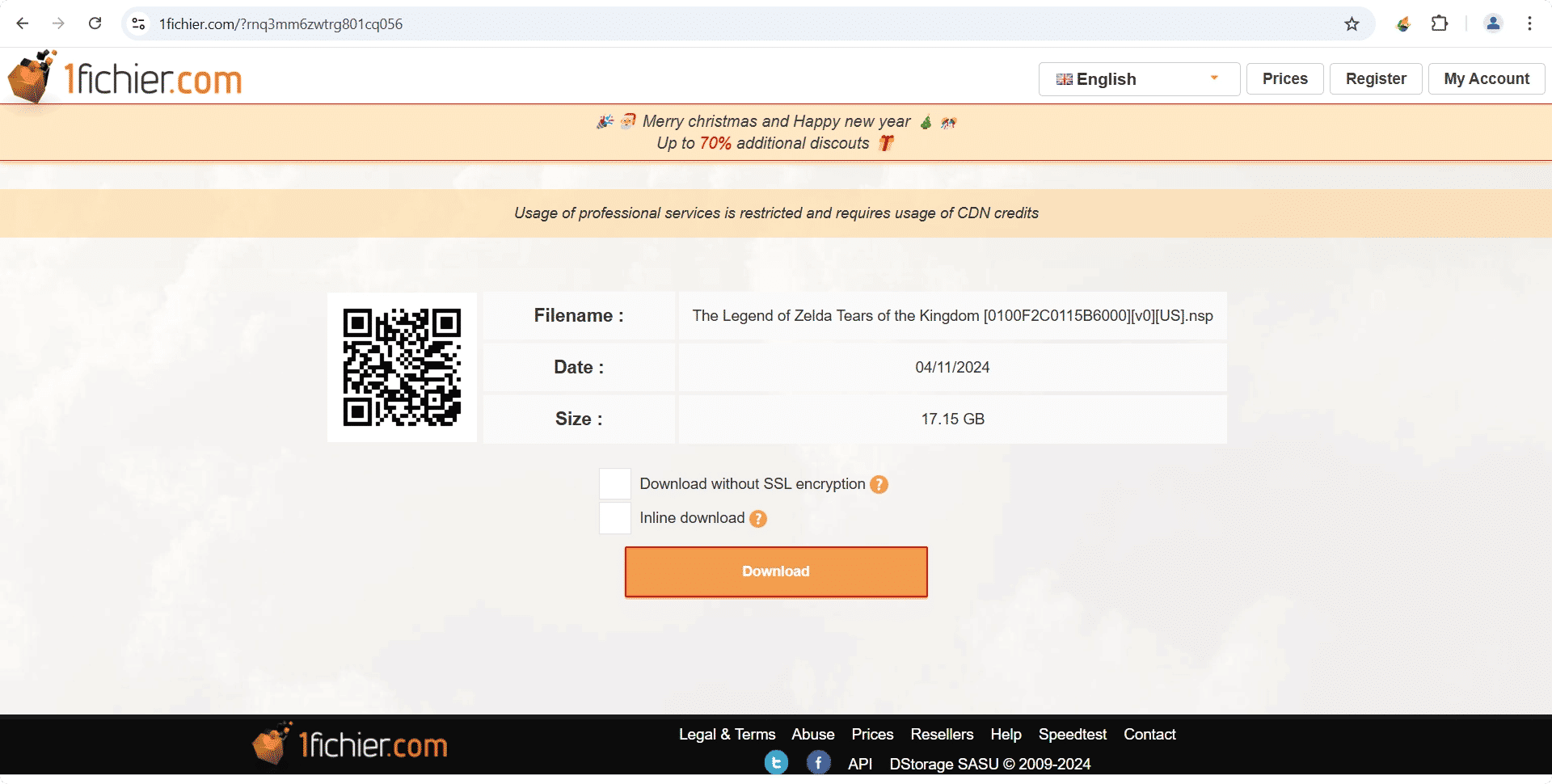
Step 5 — Prepare the download
Click “Download” and wait for the “Click here to download the file” button to appear. Do not click it yet.
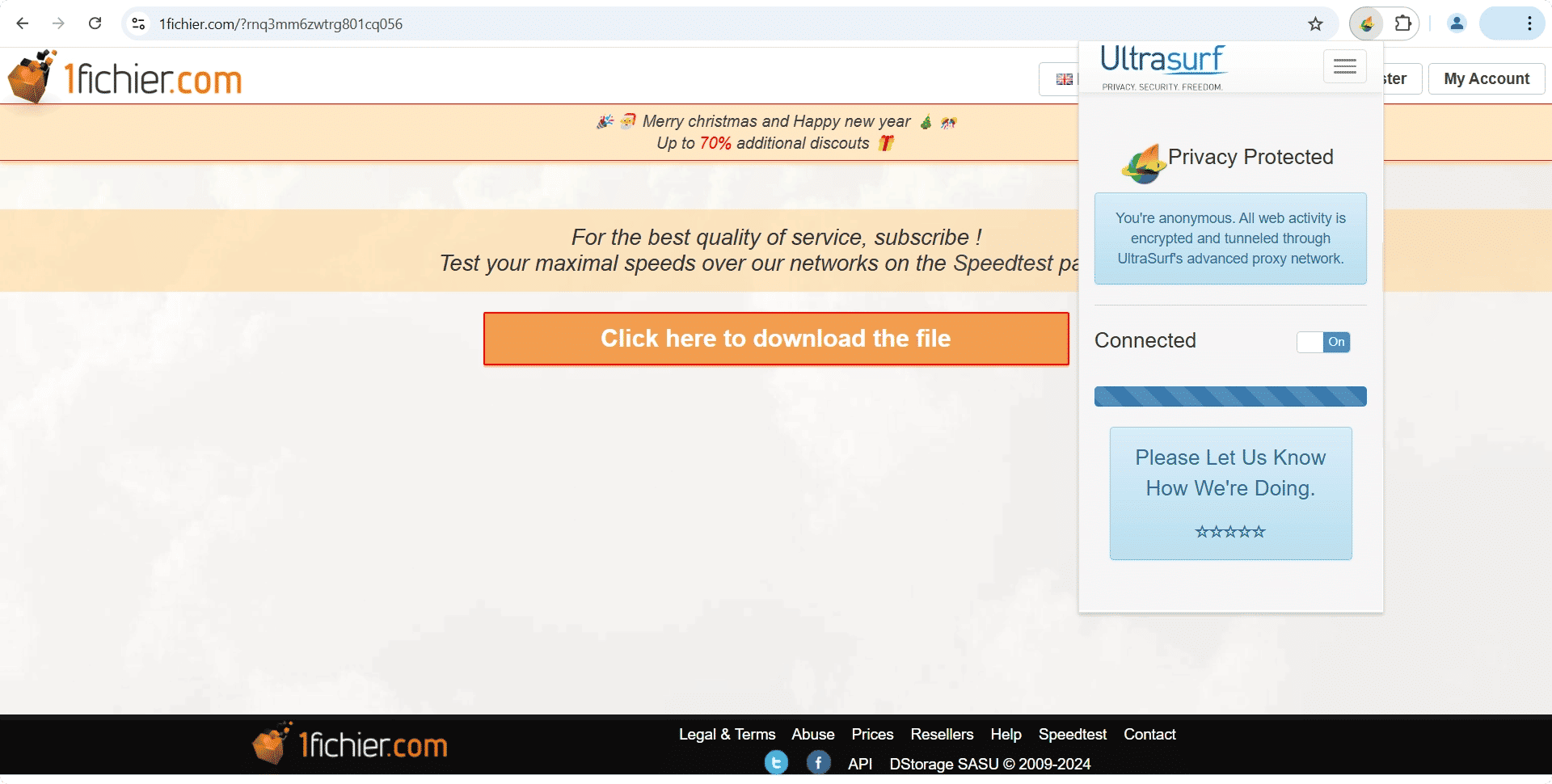
Step 6 — Turn off UltraSurf and download
Open UltraSurf and turn off the toggle (disconnect the VPN). Immediately after, click “Click here to download the file”. The download will start successfully and without a waiting timer.
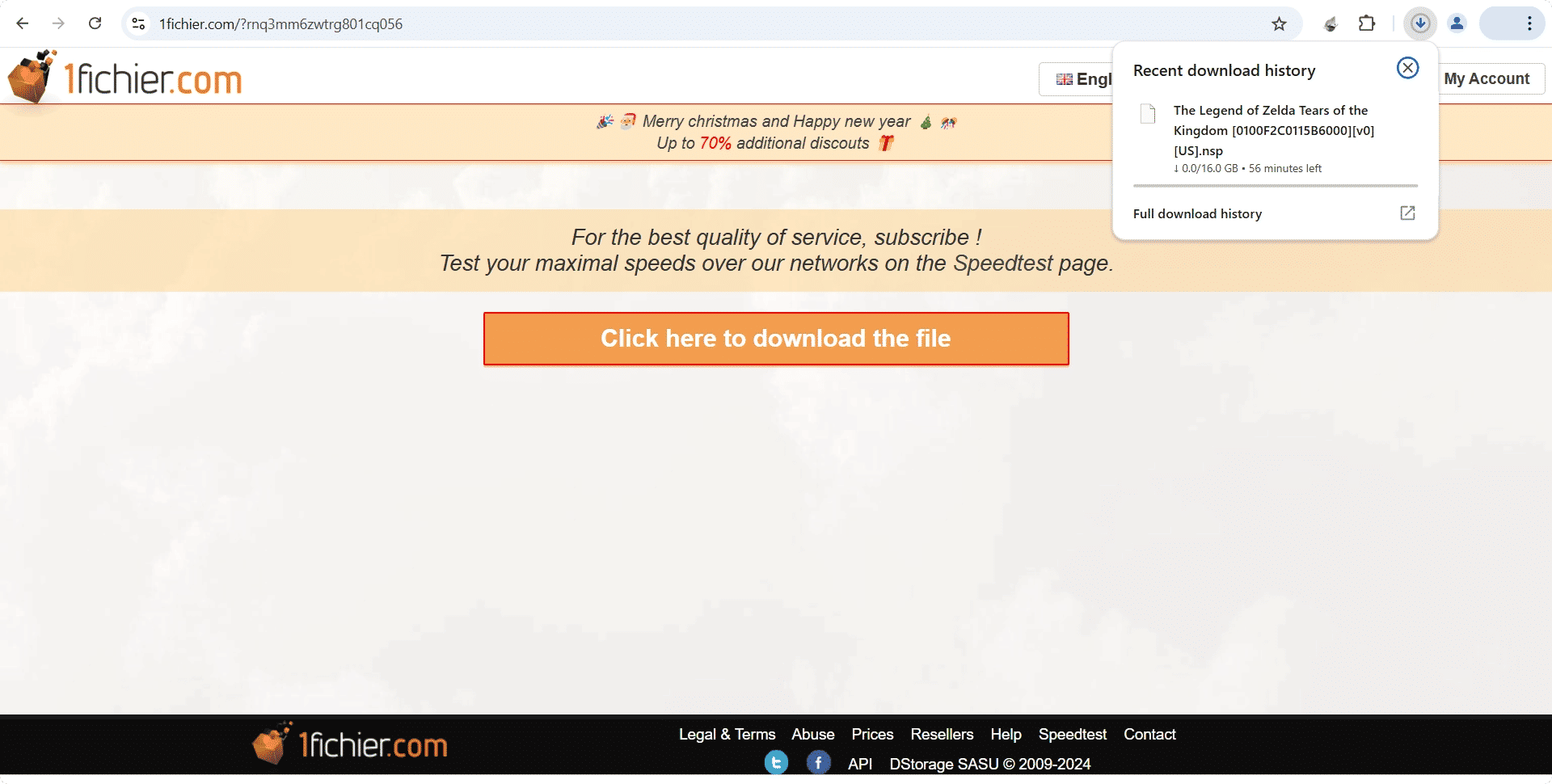
Notes and useful comments
- Full speed: After applying these methods, it is possible to download at maximum speed without the timer.
- Router ON/OFF: If the VPN greatly reduces speed, turning the router off and on is usually enough to bypass the wait.
- Android: If it doesn’t work the first time, try again; the IP change may take a few seconds.